Contents - Index - Previous - Next
Sets - Adding Songs to a Set
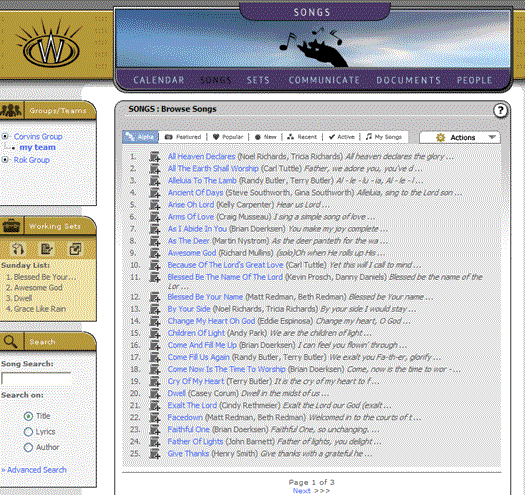
To quickly add a few songs to our set, simply click on the "Songs" section from the main menu bar. Once you land there you will notice a screen with a list of songs. At the beginning of each song listing, (just before the song title) you will see a small icon that is a picture of a scroll (document) with a plus (+) sign on it. If you mouse-over that icon, it will turn gold and a tool tip will appear saying "Add song to set". Simply mouse click onto a few songs of your liking. As you do so, you will note that in the left margin a new box appears called "Working Sets" (it is located directly under the group/team context box). Simply put, this is your set growing, as you click the "Add song to set" icons in the songs area. After you have added four or five songs, your screen should look like this:
We will return back to the songs section later for a bit deeper look at this section, which is very rich in features. For now, simply click back on the "Sets" section by using the navigation in the main menu at the top of the site. To continue to follow this tutorial, go the next step Viewing Sets.